
Use case
Hide client names when screen sharing
A freelancer asked on Reddit recently how to organize their project boards so that screen sharing with a client stays “clean”, without other client names on show. They manage work for several clients, each with their own boards and sprints, and when they share their screen with Client A they’d rather Client A didn’t see everyone else.
It’s a small question, but almost everyone who works for more than one client runs into it. Project tools, inboxes, invoicing apps and CRMs are all built around one person managing everything in one place. The sidebar lists every board. The search box suggests recent items. The notifications panel shows whatever just changed, for whoever it changed for. None of that is a problem until you click Share screen.
Why another client’s name on your screen matters
The obvious worry is embarrassment, but there’s more to it than that.
The first is that you may have promised not to tell. Many client agreements include a confidentiality clause, and some go further and say you can’t disclose that you work for the client at all. That’s common with agencies doing white-label work, contractors on unannounced products, and anyone working with a brand that keeps its suppliers quiet. A board called “Brightline – Q4 launch” in your sidebar discloses exactly the thing you agreed to keep to yourself.
Your clients may also compete with each other. Specialists tend to work in one industry, which means two of their clients can be direct competitors. Seeing a competitor’s name in your workspace tells a client who else you serve. A card title or sprint name can tell them much more: what the other company is launching, when, and what’s going wrong.
Then there are the people behind the names. A company name on its own isn’t personal data. The client contacts on your cards are a different matter. The UK Information Commissioner’s Office is explicit that a name and a work email address relate to a particular person and are personal data. Under the GDPR, a personal data breach includes the accidental “unauthorised disclosure of, or access to” personal data, and the ICO lists sending personal data to the wrong recipient as one kind of breach. Showing one client’s contact details to another on a call is close to the same thing.
Finally, it changes how the client sees you. Even when nothing sensitive is shown, a client who catches sight of someone else’s work will reasonably wonder whether their own name turns up on other people’s calls. That doubt is hard to undo.
And calls are often recorded. A name that was on screen for a second can be paused, read and passed around long after the meeting ends.
Why reorganizing your workspace isn’t enough
The answers people usually give are sensible. Make a separate space or workspace per client. Share a single window or a single tab instead of the whole screen. Collapse the sidebar before the call. Keep a “client-facing” board with nothing internal on it.
All of these help, and you should do the ones your tools allow. But each one depends on remembering to do it, every call, before you share. And none of them covers what you can’t predict: the client name in a notification that arrives mid-demo, the recent-items list that appears when you start typing in search, a comment where a teammate mentions another account, or the browser tab next to the one you’re sharing whose title is another client’s board.
What you actually want is simpler. Other clients’ names should never be readable on your screen while you’re sharing, wherever they happen to appear.
How to hide client names with Smart Blur
Smart Blur is a browser extension that blurs sensitive text on the page itself, on your computer, before anyone on the call can see it. Nothing is uploaded and there’s no account. One of its features is a list of words to hide: you give it names, and it blurs them wherever they appear. This part of Smart Blur is free.
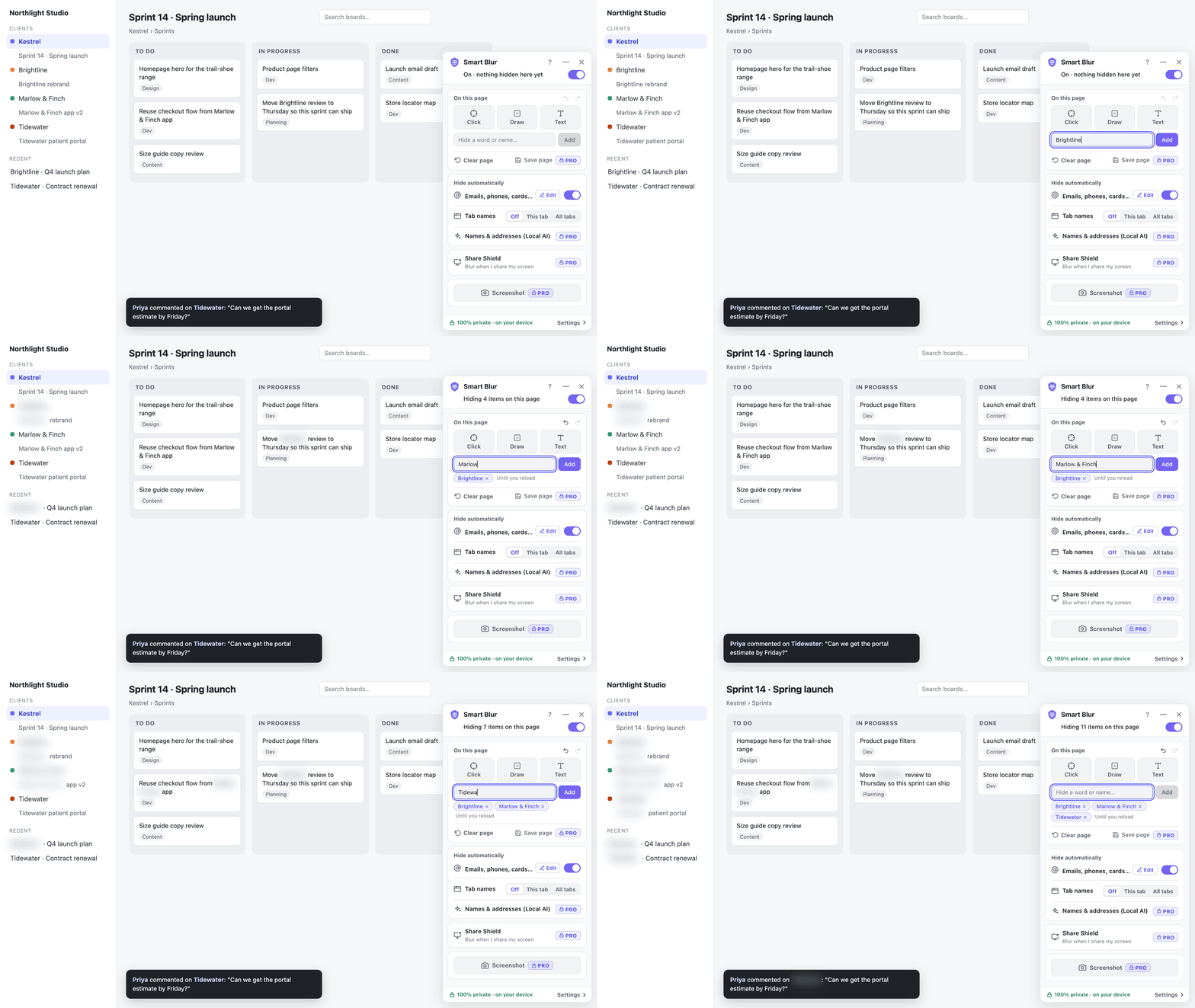
To set it up, open the Smart Blur panel, click Settings, and choose Words to hide. Add each client name you want kept out of sight, one at a time.
A few details make this work well for client names:
- Add every form of the name people actually use. Smart Blur hides exactly the text you give it, ignoring capitals. If you add “Brightline Foods”, a card that just says “Brightline” stays visible, so add the short name too, along with any project code names or abbreviations you use for the client.
- Prefer distinctive words. A word is matched wherever it appears, including inside longer words. “Nova” would also blur the first four letters of “Novak”. For a client with a very short or common name, add the full name rather than the short one.
- Add the people, not just the company. Your main contact’s name and email address are often more sensitive than the company name. Add those as words too.
- Limit words to the tools you share. Tick Limit to specific domains or URLs when you add a word and enter your project tool’s address, so the name is blurred there and nowhere else. Your own email and invoicing pages stay readable when you’re not on a call.
Because the list is saved, it works on every board, every page and every call without you thinking about it. Smart Blur also watches the page as it changes, so a name that appears later, in a notification, a search suggestion or a card you open, is blurred as it appears. Names typed into text boxes are blurred as well.
Blurring only works while Smart Blur is switched on, using the switch at the top of the panel. If you’d rather it switched on by itself, Smart Blur Pro adds Share Shield, which turns blurring on as soon as you start sharing your screen from the browser.
When you’re already on the call
If you spot a name you didn’t plan for, type it into Hide a word or name… in the panel and it’s blurred straight away. Words added there last only until you reload the page, so add the name in Settings afterwards if you’ll need it again.
Tab titles
Browser tabs show the page title, and in most project tools that’s the board or project name. If you share your whole screen or a window, every one of those tabs is visible. Set Tab names in the panel to All tabs to hide titles and site icons in the tab bar before you share. Tab titles give away more than client names; see hide tab names when screen sharing.
What words can’t catch
Smart Blur blurs text. A client’s logo on a board, or their name inside an image or a profile picture, isn’t text, so use Click or Draw in the panel to blur those. It also works only inside your browser, so if you use a desktop app, open the same tool in the browser for client calls.
Before your next call, open your workspace with the sidebar expanded and the notifications panel open, and check that every other client’s name is blurred. It takes a couple of minutes, and after that you can share your screen without scanning it first.
Client names aren’t the only thing a shared screen gives away. If your work involves client records, the same approach keeps ID numbers out of sight: see keep Canadian SINs and passport numbers safe in your screen share.
Sources
- What is personal data?, Information Commissioner’s Office (UK)
- Personal data breaches: a guide, Information Commissioner’s Office (UK)