
Use case
Keep Canadian SINs and passport numbers safe in your screen share
You’re on a call with a client, sharing your screen to walk them through your application. You open an existing file to check one detail, and there it is at the top of the page: a Social Insurance Number or passport number, readable by everyone on the call.
There’s no way to take it back, and it’s worse if the call is being recorded.
Why it keeps happening
Records systems are built to show everything about a person on one screen. That’s what you want when you’re working alone, and exactly what you don’t want the moment you share.
The usual workarounds don’t always hold up:
- Being careful works until the one time you’re in a hurry, or a page loads with more on it than you expected.
- Sharing a single window still shows everything inside that window.
- Scrolling past or saying “one second” only works if you spot the number first.
- Relying on a blur tool only helps if it knows Canadian formats. Most are built around US ones like the Social Security number, and some only recognise the passport number format Canada used before May 2023.
Recordings make it worse. A number that was on screen for two seconds during the call can be paused and read later by anyone who has the recording.
How Smart Blur solves it
Smart Blur hides personal data on the page itself, before anyone on the call can see it. You teach it a format once with a pattern, and from then on it blurs every matching number on the pages you open. It all happens in your browser: nothing is uploaded, and there’s no account. Custom patterns are part of the free version.
For Canadian records, these are the patterns to add.
SIN
\b\d{3}[\s-]?\d{3}[\s-]?\d{3}\bThis catches all three ways a SIN is written: 046 454 286, 046-454-286 and
046454286.
It will also blur the odd nine-digit number that isn’t a SIN, like the order
number 123 456 789. That’s deliberate. Blurring an order number costs nothing,
but showing a SIN can’t be undone. If the rule hides something you need to see,
limit it to the sites where you handle Canadian records when you add the
pattern.
Passport
\b(?:[A-Z]{2}\d{6}|[A-Z]\d{6}[A-Z]{2})\bPassports have a trap of their own. Canada changed the passport number format with the passport it introduced on 10 May 2023, and both formats are in circulation:
| Issued | Format | Example |
|---|---|---|
| Before 10 May 2023 | 2 letters, 6 digits | AB123456 |
| From 10 May 2023 | 1 letter, 6 digits, 2 letters | A123456BC |
The pattern above covers both formats, old and new.
Set it up once, before your next call
It takes about a minute:
- Open the Smart Blur panel and click Advanced Settings.
- Choose Patterns in the sidebar.
- Under Custom Regex Patterns, type a name (for example “Canada SIN”),
paste the pattern, and leave the flags box as
gi. Click Add. - Optional: tick Limit to specific domains or URLs and add the sites where you handle Canadian records, so the rule only runs there.
- Repeat for each ID you handle.
Once both are added, they appear under Custom Regex Patterns like this:
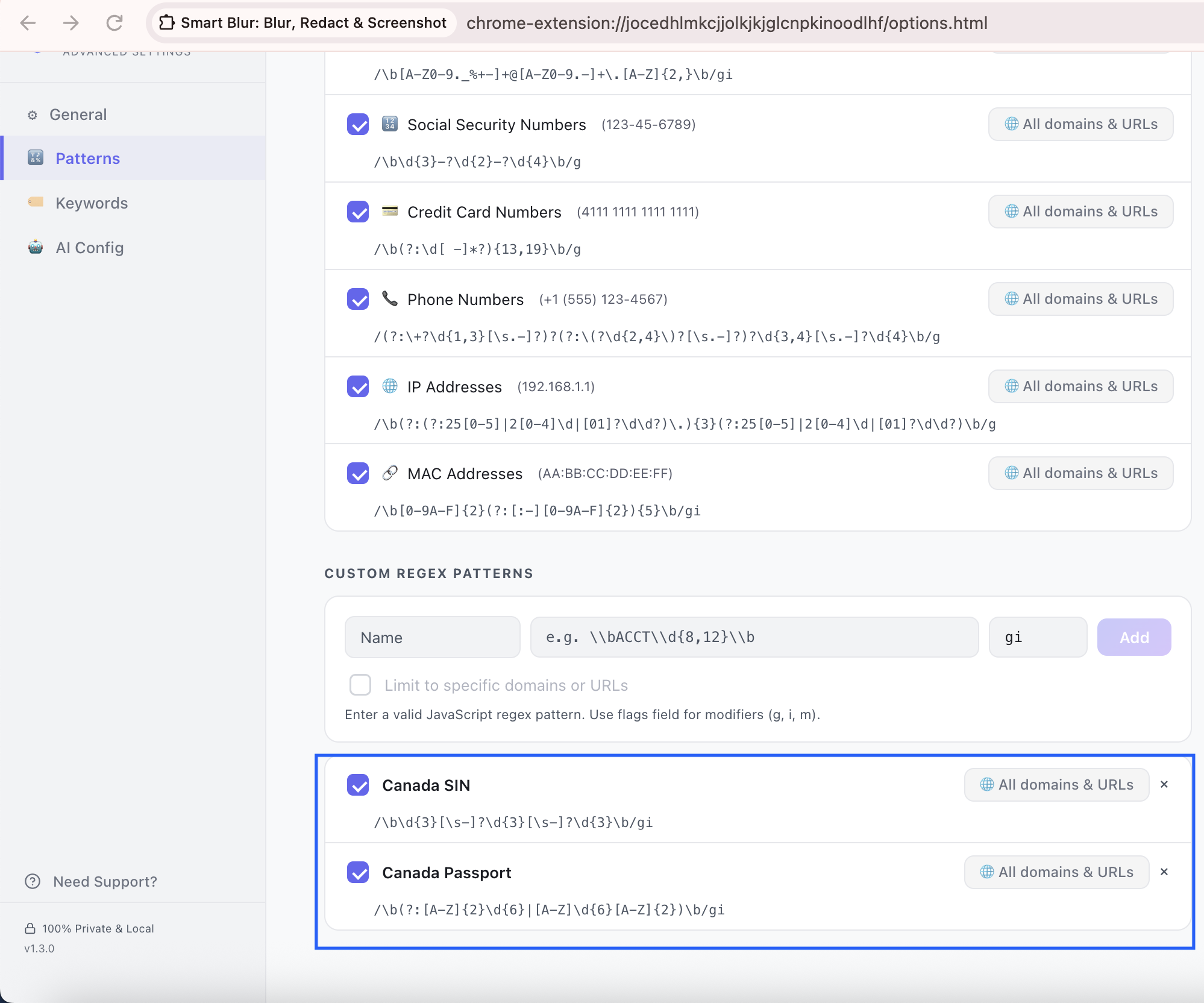
The patterns work whenever Manual Mode is on in the Smart Blur panel, which it is by default. If you’d rather leave protection off day to day, Smart Blur Pro adds Auto-enable when sharing, which switches it on the moment you start sharing from your browser.
Then open a real record and check that every number is blurred. Do it once now, not in the middle of a call.
Driver’s licences and health cards
These are issued by the provinces, and each province formats them differently, so there’s no single Canadian pattern. Ontario has its own write-up, covering both the health card and the licence: what Ontario privacy law says about OHIP and licence numbers.
Sources
- Features of Canada’s new passport, Government of Canada
- Social Insurance Number, Government of Canada
- Canada passport number entity definition, Microsoft Purview
- Canada driver’s license number entity definition, Microsoft Purview