
Use case
Hide WhatsApp Web chats in screen shares and screenshots
WhatsApp started on the phone, where only you look at the screen. WhatsApp Web puts the same app in a browser tab, on the same computer you use for meetings, demos and screenshots. That tab is often already open when you click Share screen.
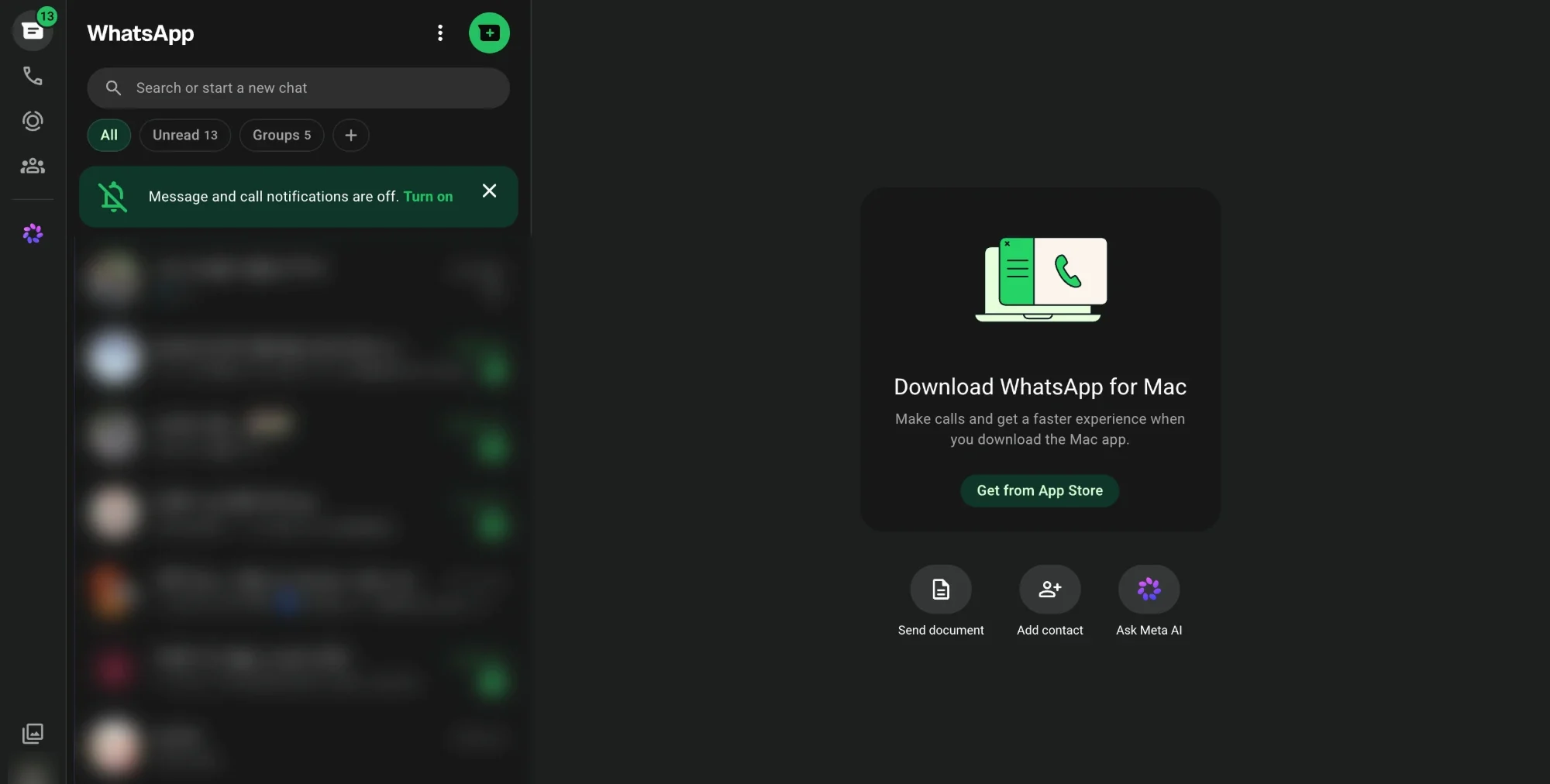
Open it and the first thing you see is the chat list. Every row is a person or a group you talk to, with their profile photo, the last message they sent and when they sent it. Contacts you haven’t saved show up as their full phone number. Group messages from people you don’t know carry their number too. Nobody designed this screen to be shown to a room full of colleagues, and on a call it takes only a second for someone to read it.
What a WhatsApp Web screen share gives away
Some of it is obvious: a private message in the preview line, a family group name, a photo of your child as a contact picture. Some of it is less obvious and matters more.
The chat list is a list of who you talk to and how often. On a work call, that can show a client you haven’t told your employer about, a recruiter, a lawyer, a doctor’s office or a competitor. The order of the chats shows who you spoke to most recently, and the unread counts show who you’ve been ignoring.
Phone numbers are personal data about other people, not just you. A number in your chat list belongs to someone who never agreed to have it shown on a call, and calls are often recorded. A number that was on screen for two seconds can be paused and read later.
If you use WhatsApp for work, as many small businesses, agents and support teams do, the chat list is also a list of your customers. Showing one customer the names, numbers and last messages of the others is the kind of disclosure data protection laws are written about.
Then there are WhatsApp Web screenshots. You screenshot one message to drop into a ticket, a slide or a group chat, and the image also captures the chat list beside it, the contact’s name and photo in the header, and whatever their last few messages said.
Why the usual advice only goes so far
The common advice is to share a single tab or window instead of your whole screen, close WhatsApp Web before a call, or turn off desktop notifications. All of that is worth doing. WhatsApp’s own screen lock also helps when you walk away from your desk, though it does nothing once you’re showing the app on purpose.
The trouble is that these steps all depend on remembering, every call. And sometimes WhatsApp is the thing you need to show: walking a colleague through a customer conversation, demoing a WhatsApp Business flow, or sharing a screenshot of a message as evidence. Closing the tab isn’t an option then. What you want is to show the one chat that matters and keep the rest unreadable.
There are browser extensions built only for blurring WhatsApp Web. They work, but most people don’t share only WhatsApp. The same call usually involves an inbox, a CRM or a spreadsheet with just as much personal data in it.
How to hide WhatsApp Web chats with Smart Blur
Smart Blur is a browser extension that blurs personal information on the page itself, on your computer, before anyone on the call sees it. Nothing is uploaded and there’s no account. It works on WhatsApp Web the same way it works on any other site, so the setup you use for WhatsApp also protects the other tabs you share.
Smart Blur gives you several ways to blur, and on WhatsApp Web each one suits a different part of the screen. The first four are free.
Blur the whole chat list with Draw
If you’re about to share and just want the chat list gone, choose Draw in the Smart Blur panel and drag a box over the left-hand column. Everything under the box is blurred: names, photos, previews and unread counts.
The box stays on the chats it was drawn over. If you scroll the chat list, the box moves with those chats and new ones come into view uncovered, so draw it once the list is where you want it, and don’t scroll it during the call.
Blur one photo or name with Click
To hide something specific, choose Click and click on it. Click a profile photo to blur that photo. Click a contact’s name in the chat header to blur the name while leaving the conversation readable. This works well for the open chat when you need to show a conversation without saying who it’s with.
Click blurs the one item you clicked. If you open a different chat, WhatsApp redraws the header, so check it again before you carry on sharing.
Hide contact names everywhere with Keywords to hide
For names you never want on screen, add them as Keywords to hide. Open the Smart Blur panel, click Settings, choose Keywords to hide, and add each name. Smart Blur then blurs that name wherever it appears: in the chat list, in the chat header, in group messages and in search results, including when a new message moves the chat to the top of the list.
Tick Limit to specific domains or URLs and enter web.whatsapp.com if you
only want those names hidden in WhatsApp. If you spot a name in the middle of
a call, type it into Hide a keyword or name… in the panel and it’s blurred
straight away until you reload the page.
Blur phone numbers and email addresses with patterns
Turn on Emails, phones, cards… in the panel and Smart Blur blurs email addresses, card numbers and phone numbers as the page loads and as new messages arrive. In WhatsApp, that covers numbers in the chat list for contacts you haven’t saved, numbers shared in messages, and email addresses people send you.
WhatsApp shows numbers in international format, with a + and the country
code, and the phone pattern recognises the common formats for each country:
+1 (416) 555-0123, +91 98765 43210 and +44 7700 900123 are all blurred
without any setup.
Find names and addresses in messages with Local AI (Pro)
Patterns find text with a fixed shape. Names and addresses written in ordinary sentences don’t have one: “drop it at 42 Harbour Street, ask for Priya”. Smart Blur Pro adds Local AI, which reads the text on the page and blurs the names, addresses and account numbers it finds. It runs entirely on your computer after a one-time download, so your messages are never sent anywhere. It’s useful when you have to show a conversation and can’t predict who or what it will mention.
Screenshots
Because Smart Blur blurs the page itself, any screenshot you take of WhatsApp Web, with your computer’s own screenshot tool or anything else, shows the blur too. Set up the blur first, then take the screenshot. Smart Blur Pro also has a Screenshot button that captures the visible area or a region you select, already blurred.
Turning it on when you share
Blurring works while Smart Blur is switched on, using the switch at the top of the panel. If you’d rather it switched on by itself, Smart Blur Pro adds Share Shield, which turns blurring on the moment you start sharing your screen from the browser.
What Smart Blur can’t cover
Smart Blur works inside the browser. Desktop notifications from WhatsApp Web are drawn by your operating system, outside the page, so it can’t blur them. If you share your whole screen, turn off notification previews in WhatsApp Web’s settings or switch on Do Not Disturb before the call. The WhatsApp desktop app is also outside its reach; for calls, use WhatsApp in the browser.
Your browser’s tab bar can give WhatsApp away too, with an unread count in the tab title. Set Hide tab names in the panel to All tabs to hide titles before you share, and see hide tab names when screen sharing for what else tab titles reveal.
A quick check before your next call
Open WhatsApp Web, open Smart Blur, and decide what needs to go: the whole chat list, a few names, or just the phone numbers. Add the names you’ll always want hidden to Keywords to hide and turn on patterns, so that part is done for every future call. Then start a test share or take a screenshot and look at it the way someone else on the call would. It takes a couple of minutes, and after that you can share WhatsApp Web without reading every line of it first.
WhatsApp isn’t the only tab that lists the people you work with. For the same problem in project tools and inboxes, see hide client names when screen sharing.