
Guide
Blur your own ID formats with custom patterns
Every blur tool knows what an email address looks like. Most know credit card numbers and phone numbers too. None of them knows what your order numbers look like, or your policy numbers, patient IDs, employee numbers, case references or the hostnames of your internal servers.
Those are often the details that matter most on a shared screen. An order number leads to a customer’s address. A policy number is the key to someone’s account. A case reference ties a person to a complaint, a claim or a diagnosis. And because they’re specific to your company, no built-in detector will ever catch them.
Why a list of words isn’t enough
The obvious workaround is to add things to a list of words to hide. That works for names you know in advance, like other clients or a project code name. It doesn’t work for identifiers, because every order and every patient has a different number. You can’t list them all, and the one on screen today is the one you didn’t add.
What you need is a rule for the shape of the identifier: “ORD- followed by six to eight digits”, or “two letters, six digits and a letter”. That’s what a pattern is.
Custom patterns in Smart Blur
Smart Blur is a browser extension that blurs sensitive information on web pages before anyone on a call sees it. Alongside its built-in Patterns for emails, phone numbers, cards and other common formats, you can add your own. Custom patterns are free, and there’s no limit on how many you add.
Open Settings → Patterns, then Your own patterns. There are two ways to add one.
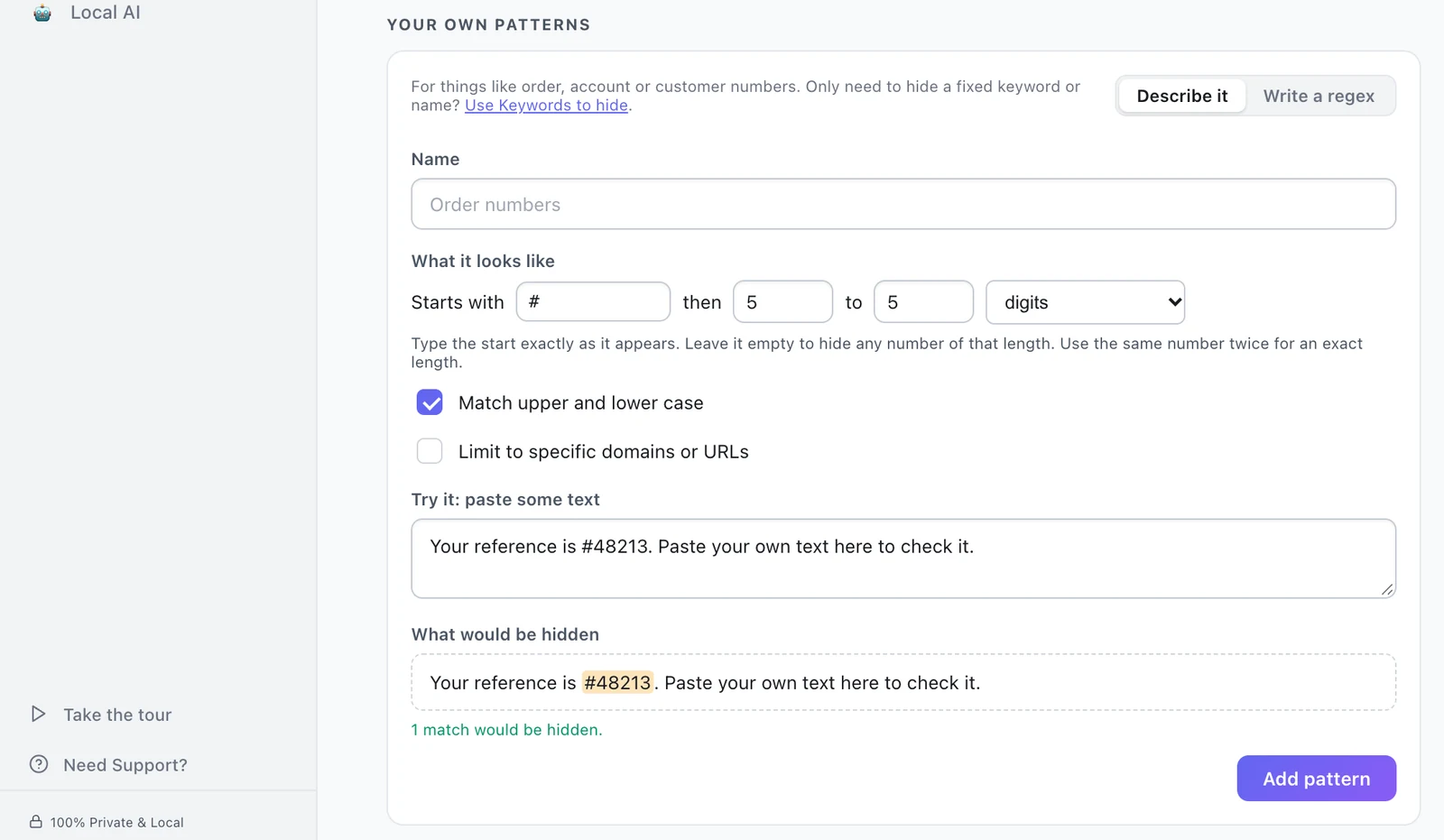
Describe it, in plain words
Most identifiers are a fixed start followed by a run of digits or letters. For those you don’t need to know any regex syntax. Choose Describe it and fill in the sentence:
- Order numbers: starts with
ORD-, then 6 to 8 digits. This blursORD-482913andord-48291377, but notORD-12345, which is too short. - Policy numbers: starts with
POL, then 8 to 8 letters or numbers. This blursPOL 4X9K2M7Q,POL-4X9K2M7QandPOL4X9K2M7Q, but not the word “Policy”. When the start ends in a letter or number, Smart Blur also allows a space or dash after it. - Ticket numbers: starts with
#, then 5 to 5 digits. This blurs#48213, but not a colour code like#ff00aa.
Leave Starts with empty to blur any number of a given length, such as every six-digit number on one site. That’s broad, so pair it with a site limit (see below).
Write a regex, for anything else
Some formats need more than a start and a length. For those, choose Write a regex and enter a regular expression, without the surrounding slashes. A few examples:
- UK National Insurance numbers, such as
AB 12 34 56 C:\b[A-CEGHJ-PR-TW-Z]{2} ?\d{2} ?\d{2} ?\d{2} ?[A-D]\b - Indian PAN numbers, such as
ABCDE1234F:\b[A-Z]{5}\d{4}[A-Z]\b - Internal hostnames, such as
db-prod-3.corp.example.com:\b[\w-]+\.corp\.example\.com\b(with your own domain)
For formats defined by capital letters, like the first two, untick Match upper and lower case, so ordinary lowercase words aren’t caught. If the regex has a mistake, Smart Blur says so in plain words before you can add it.
Test it before you add it
Whichever way you add a pattern, the Try it box underneath shows exactly what would be hidden, highlighted, with a count of matches. Paste in some real text from the page you’ll be showing, including things that look similar but shouldn’t be blurred, and adjust until only the right things are highlighted.
Limit it to the sites where it belongs
Tick Limit to specific domains or URLs to apply a pattern only on certain sites, such as your order system or your support tool. This keeps a broad pattern from blurring harmless numbers everywhere else.
Once added, a custom pattern works like the built-in ones: it blurs matches as the page loads and as new content appears, including text typed into form fields.
Getting patterns right
Start narrow. A pattern that blurs too little is easy to spot in the test box; a pattern that blurs half the page is tempting to switch off, and then it protects nothing.
Use real samples. Formats drift: a new prefix, an extra digit, a space where there used to be a dash. Test against what’s on screen today.
Remember what patterns can’t see. They read text, so an ID inside an image, a PDF preview or a scanned document isn’t caught. Use Click or Draw for those.
Some other blur extensions accept regular expressions too, usually on a paid plan or with a small limit on the free one. What Smart Blur adds is the plain-words option for people who don’t write regex, a test box that shows the result before anything changes on the page, and site limits for each pattern, all on the free plan. See how Smart Blur compares with other blur extensions.
For worked examples, there are posts on Canadian SINs and passports, US driver’s license numbers, with patterns for six states, and Medicare numbers.